
Automations notify you by Email, Slack or Microsoft Teams when a condition you define is met. You can scope each automation to specific projects or teams, edit it later, and disable it without deleting it.
This guide walks you through creating, managing and disabling an automation in Valven.
Step 1: Start a new automation
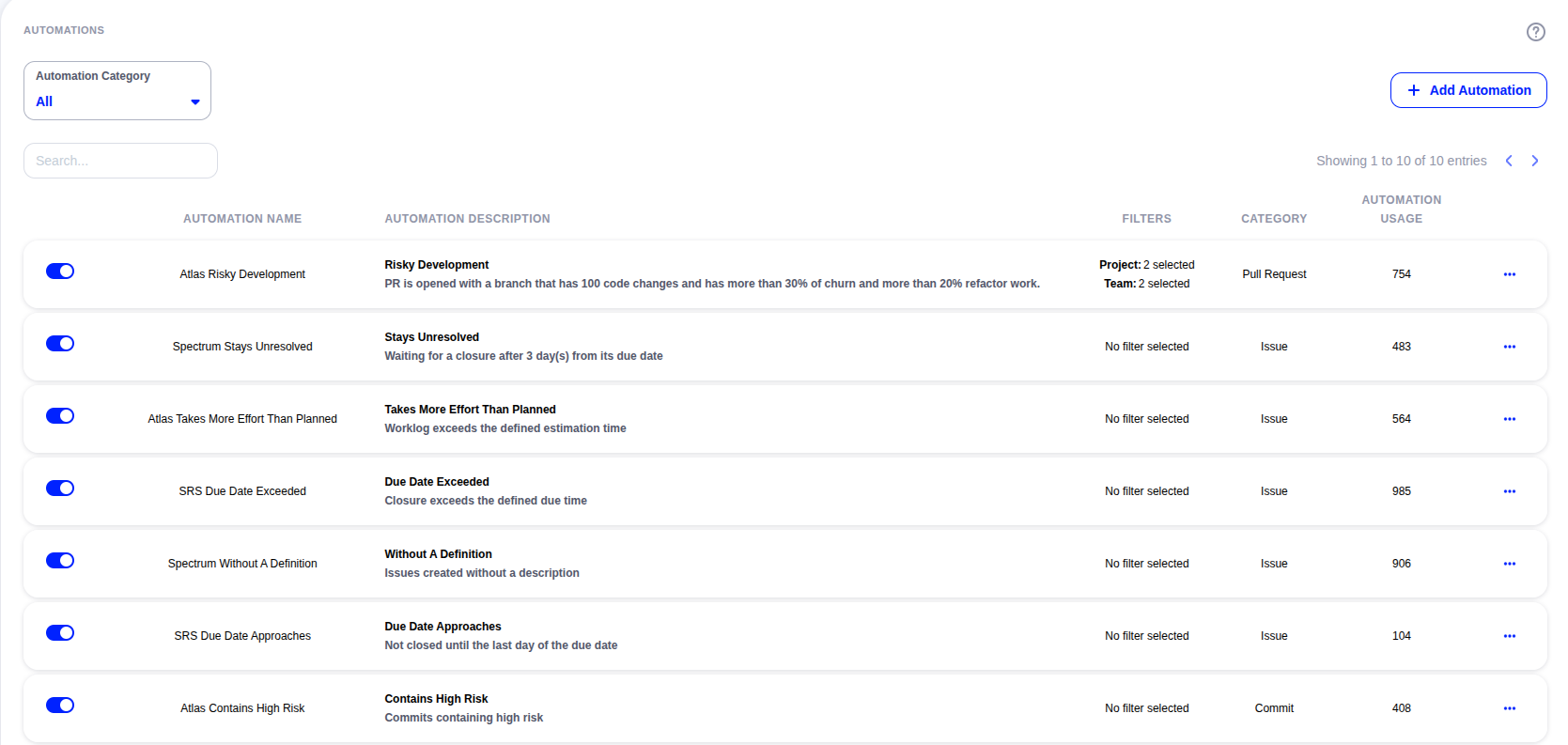
Go to the Automations page and click Add Automation.
Step 2: Name the automation and choose a condition
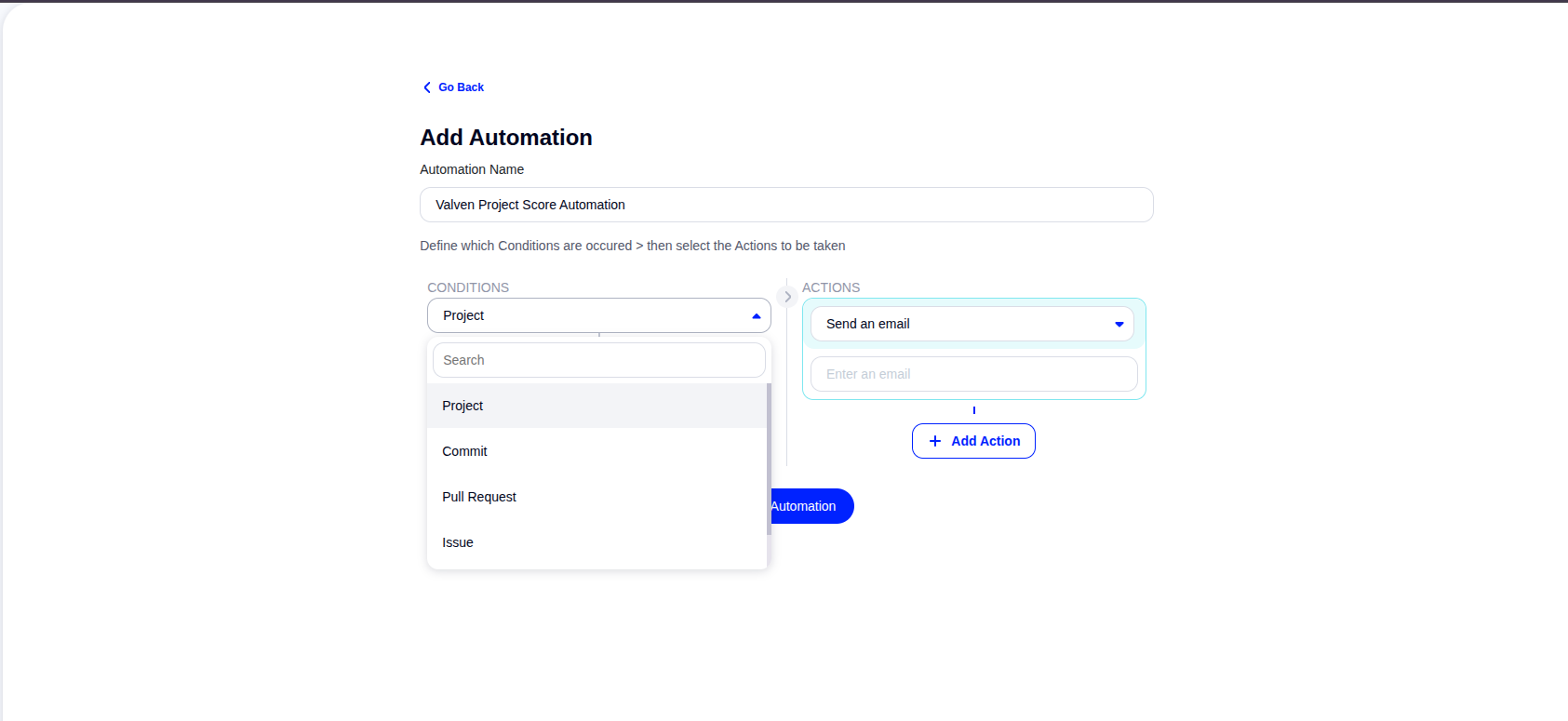
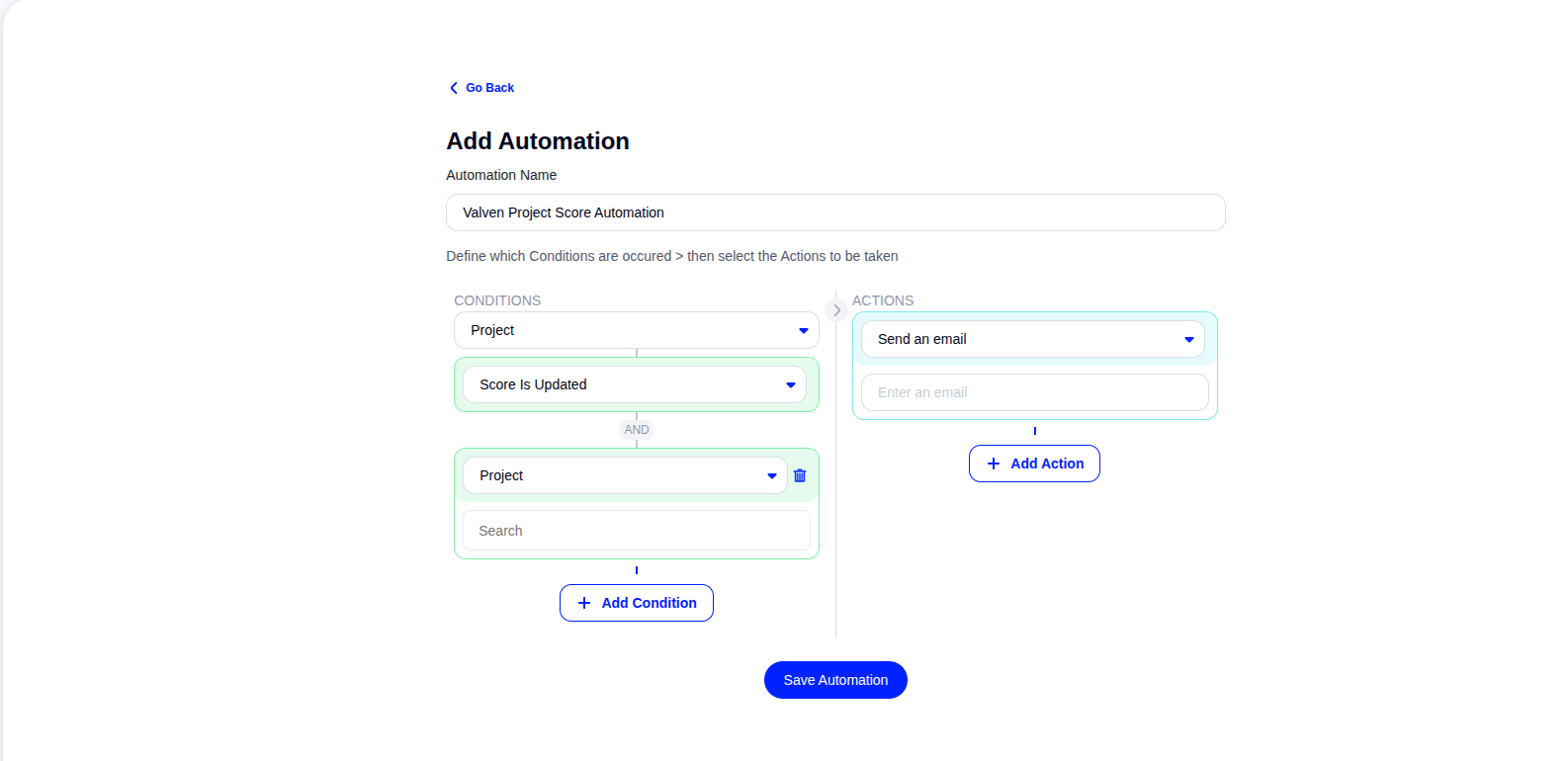
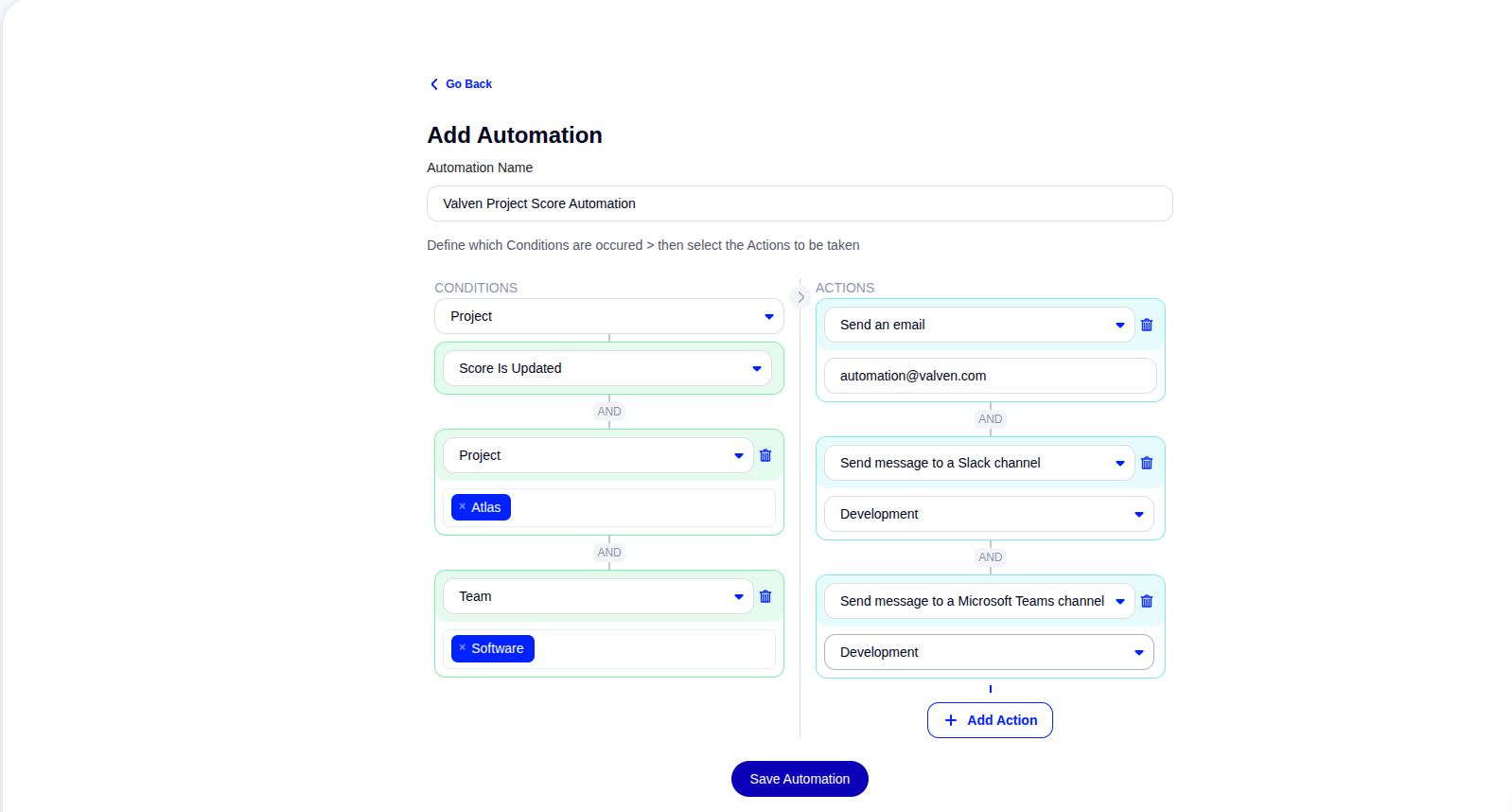
In the screen that opens, enter a name for your automation. Then use the Conditions dropdown to select the category of actions the automation will track.
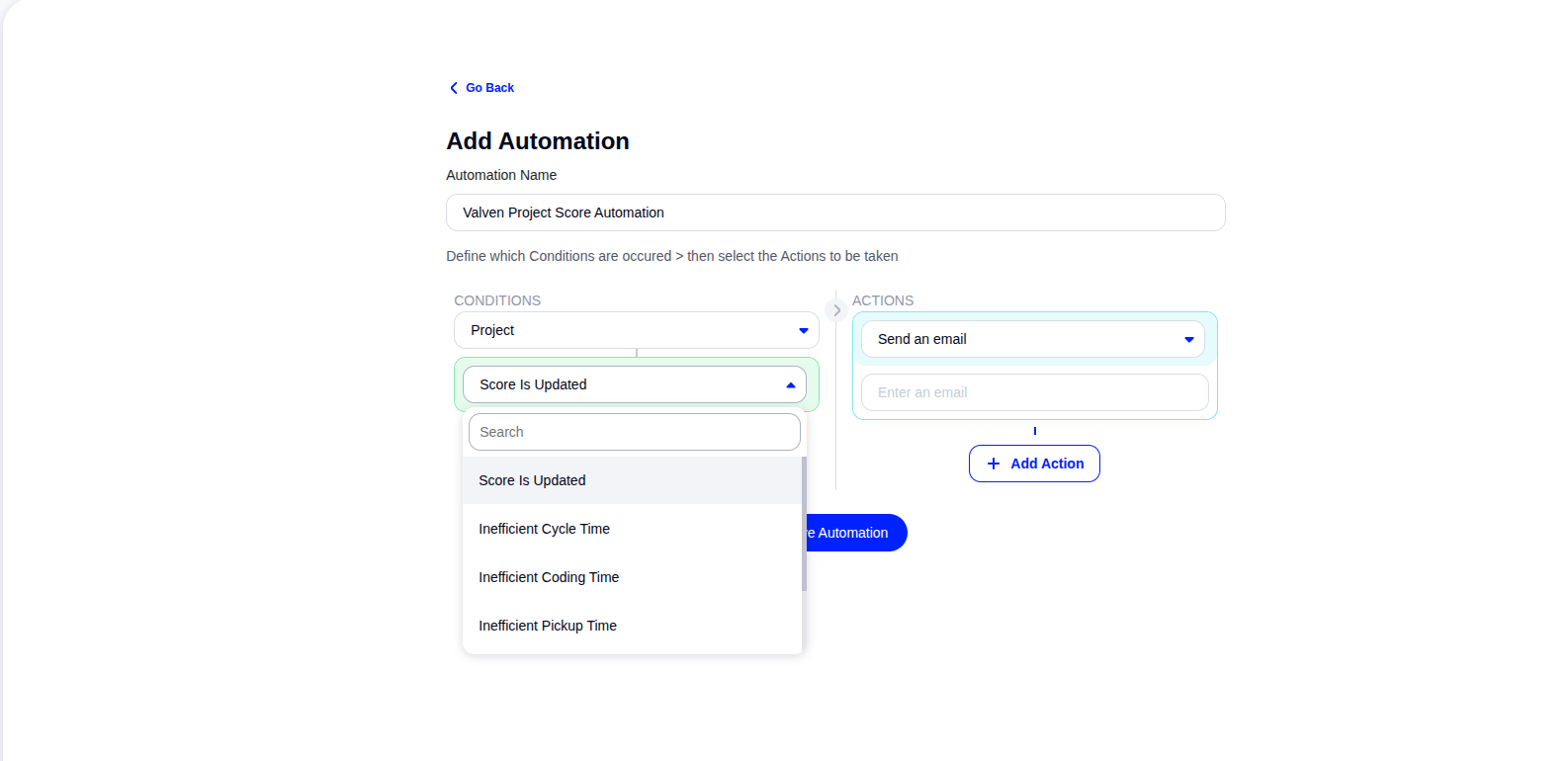
Based on your selection, use the dropdown directly below it to choose the specific condition you want to check.
Step 3: Add a project filter (optional)
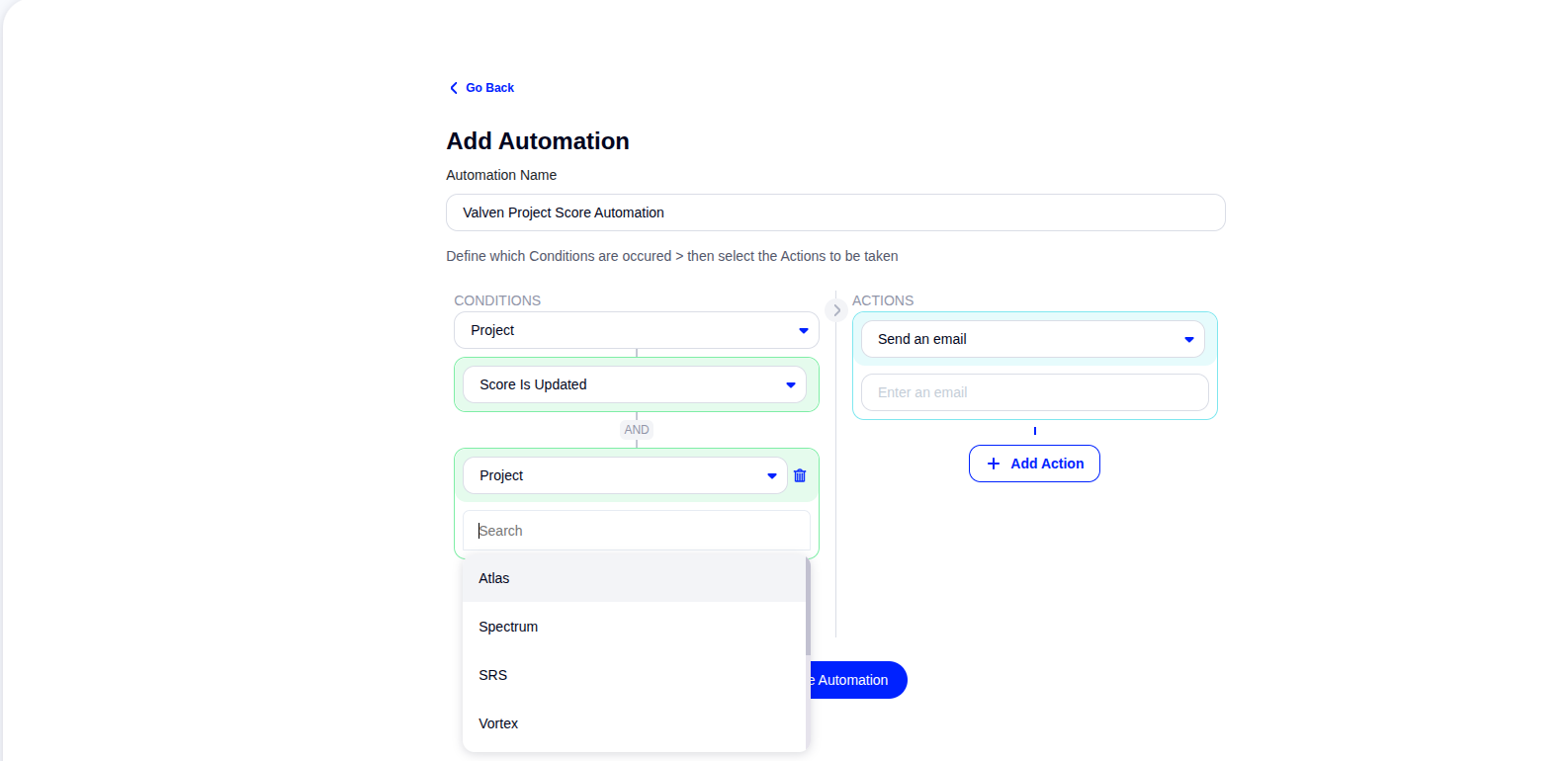
After selecting your condition, you can narrow the automation to specific projects or teams by clicking Add Condition.
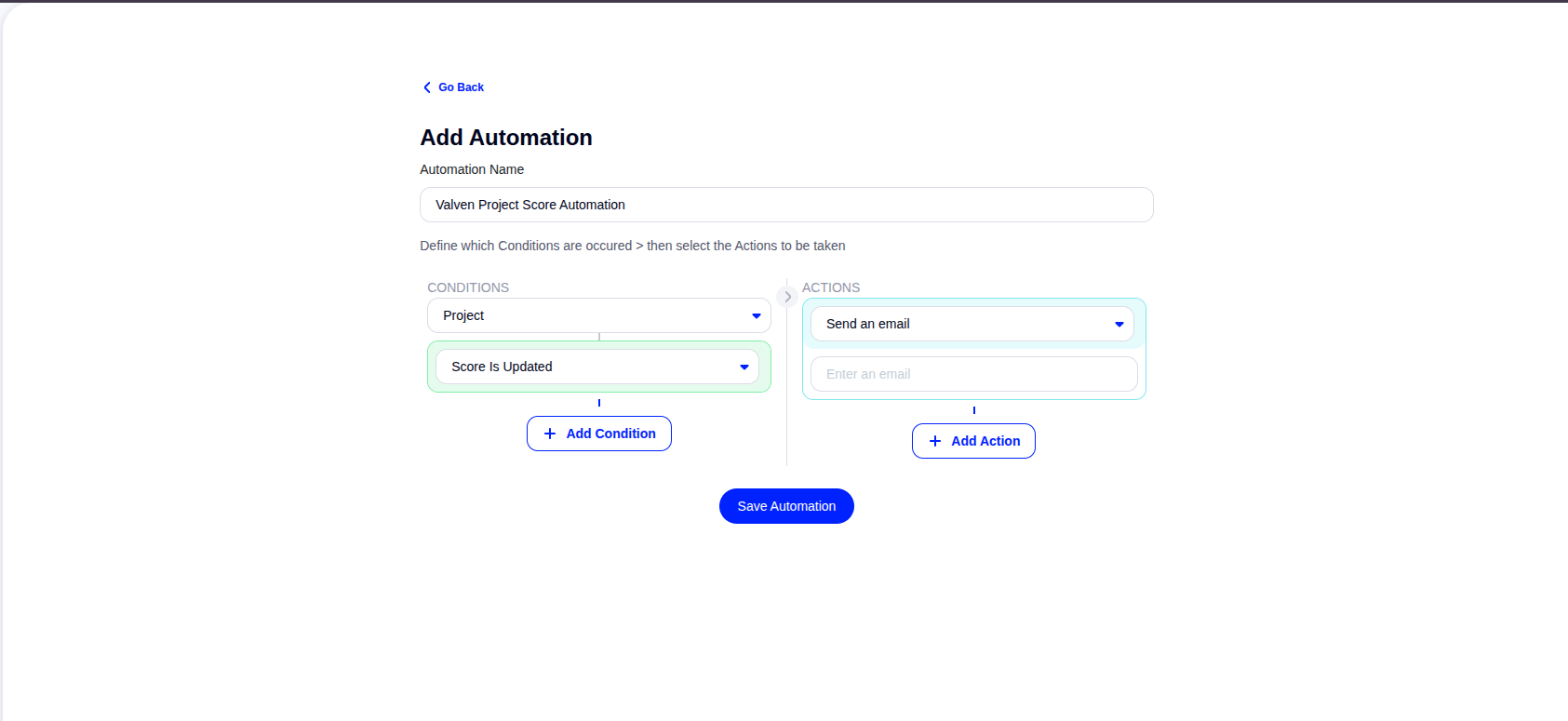
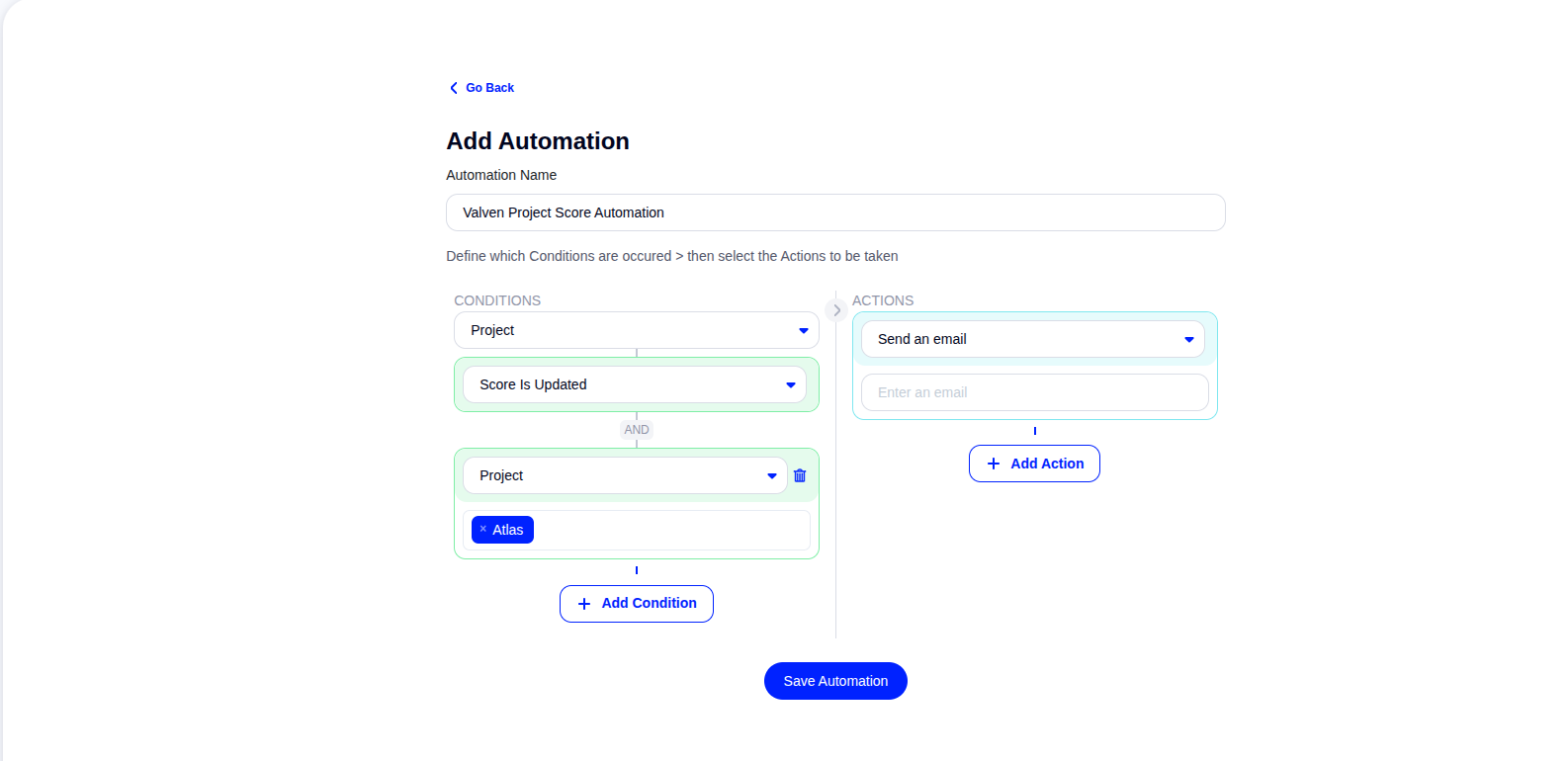
To add a project filter, click Add Condition and select the project(s) you want to include.
Step 4: Add a team filter (optional)
You can add a team filter the same way. Click Add Condition again and select the team(s) you want to include.
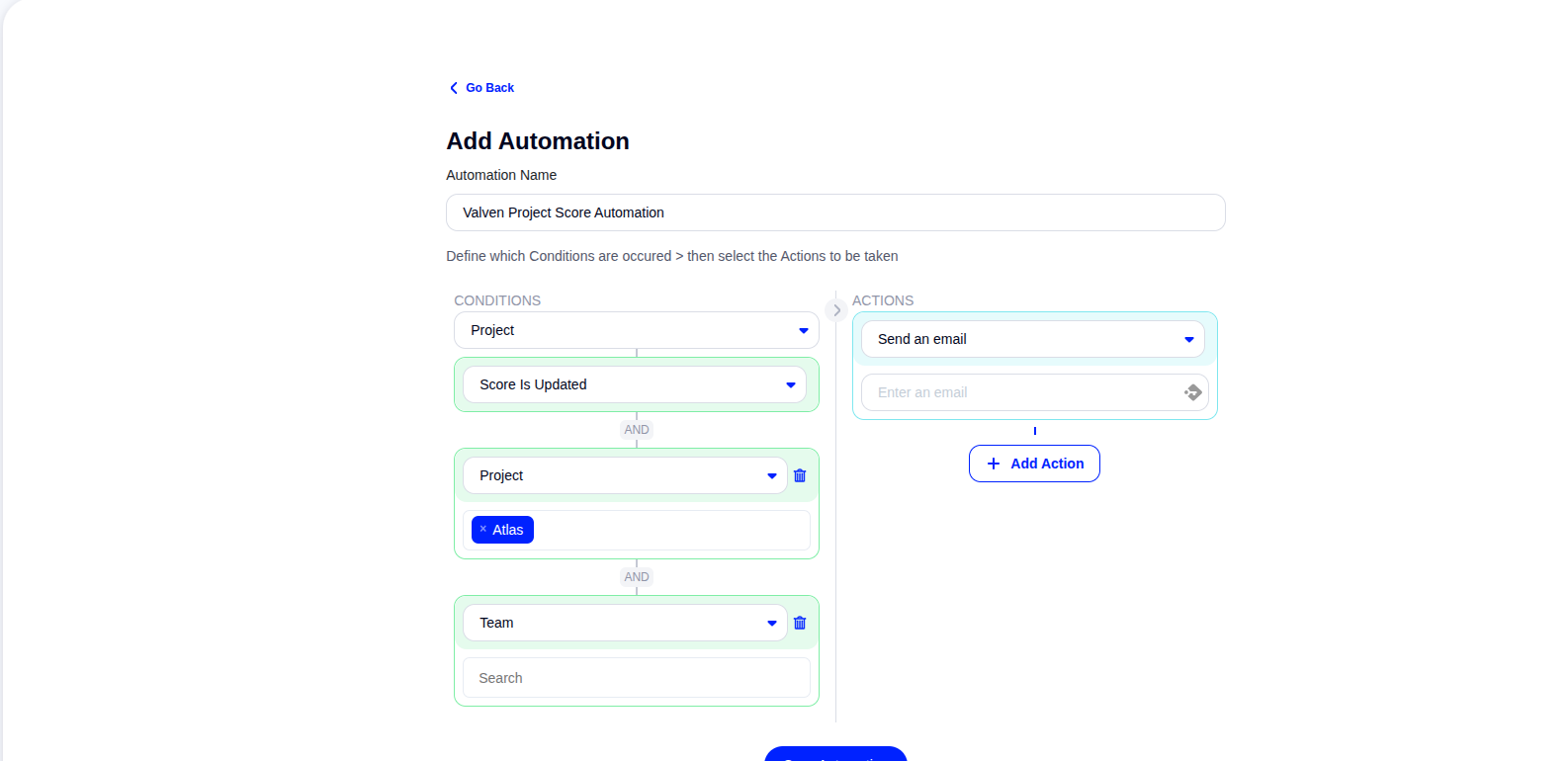
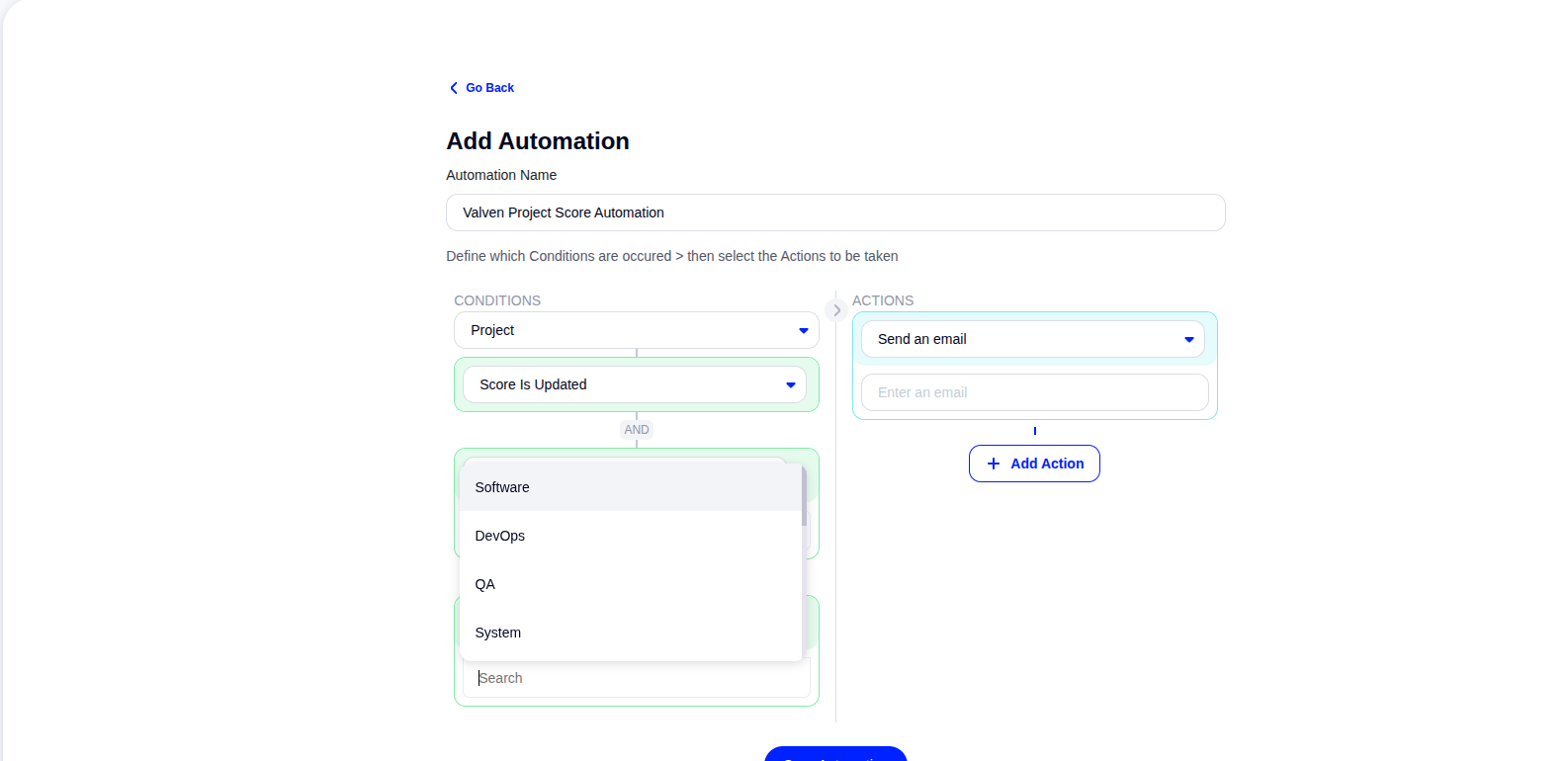
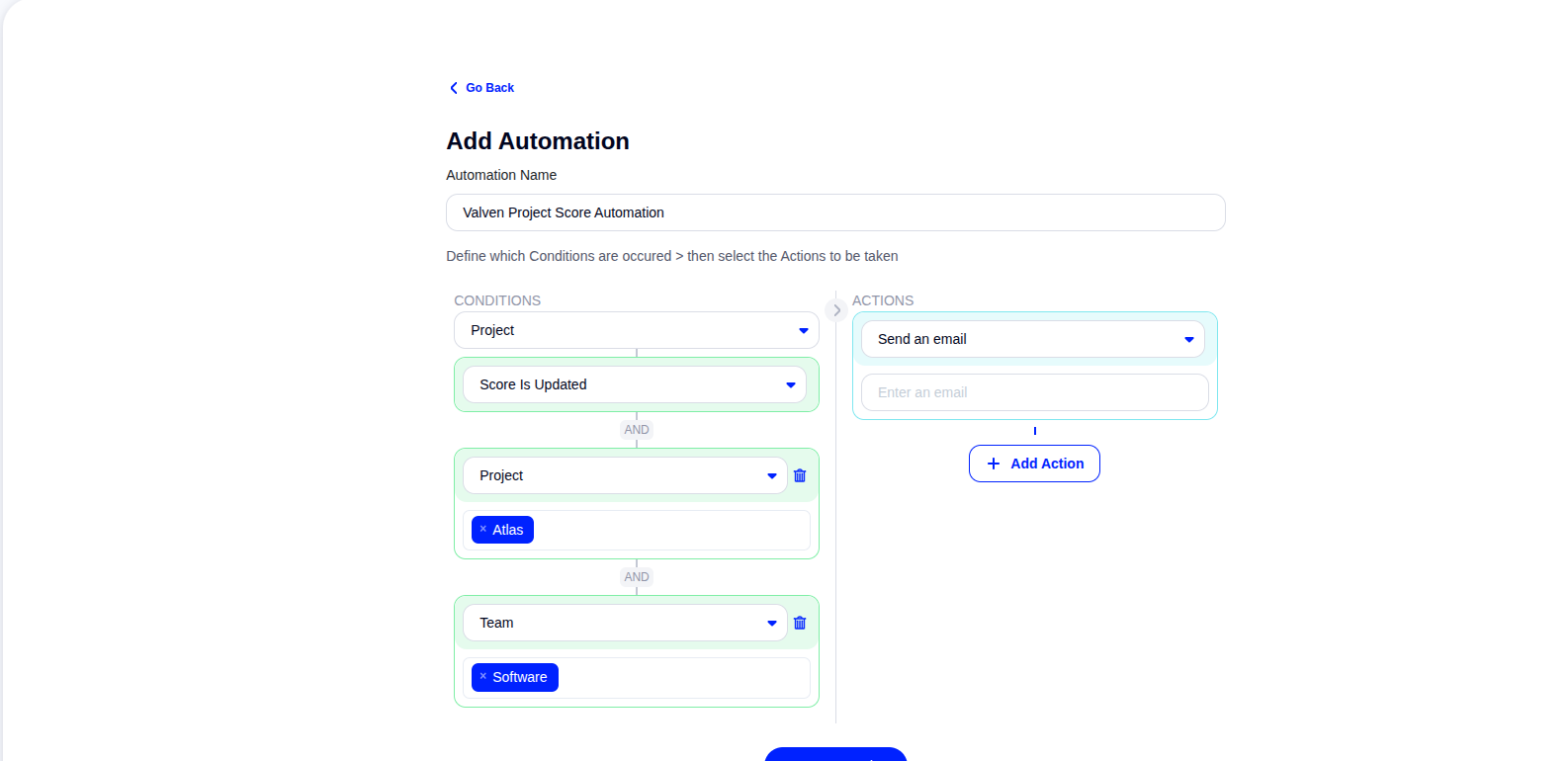
Once your filters are in place, choose how the automation notification will be delivered.
Step 5: Choose notification actions
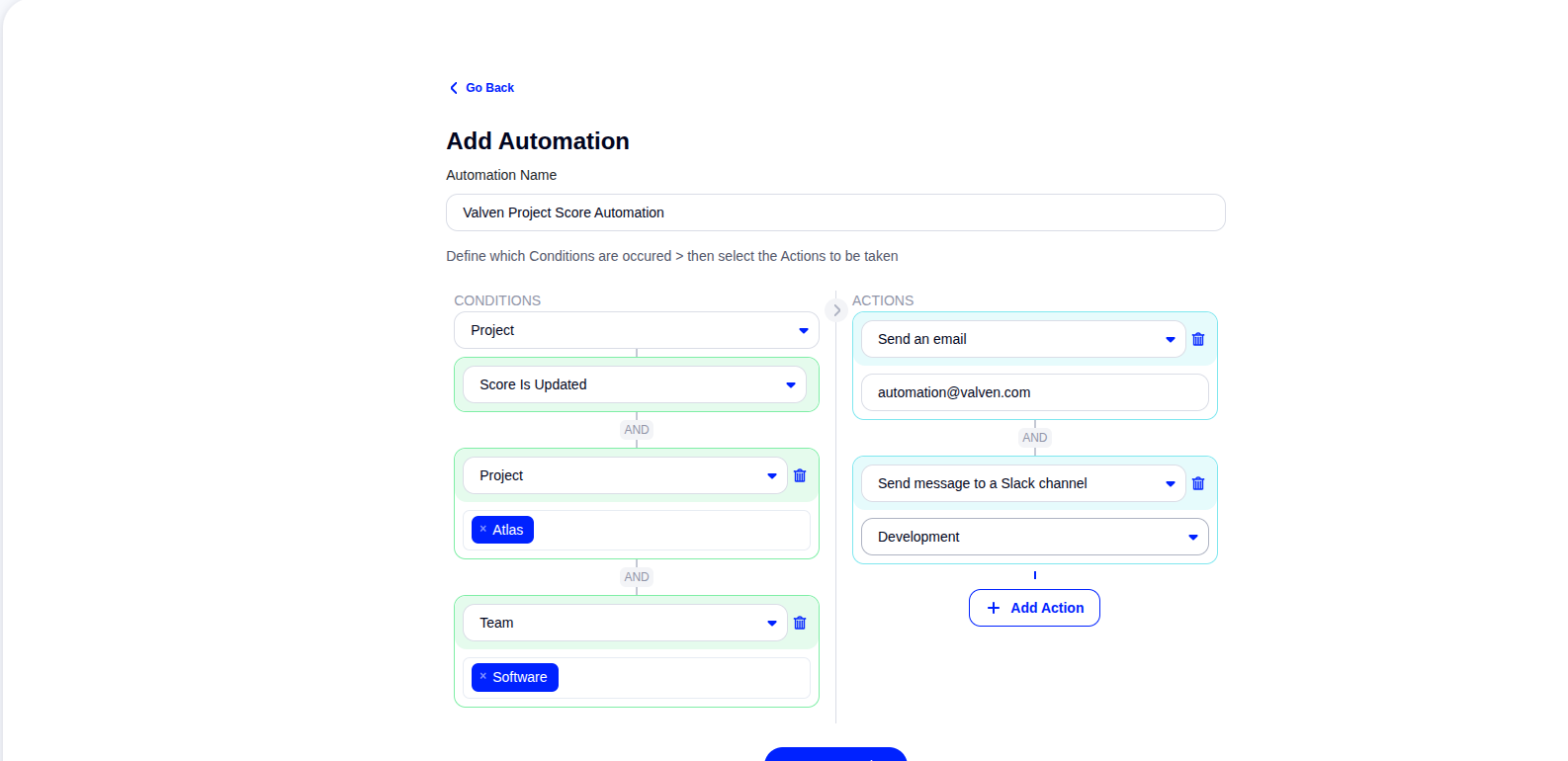
In the Actions panel on the right side of the screen, select how you want to receive notifications for this automation.
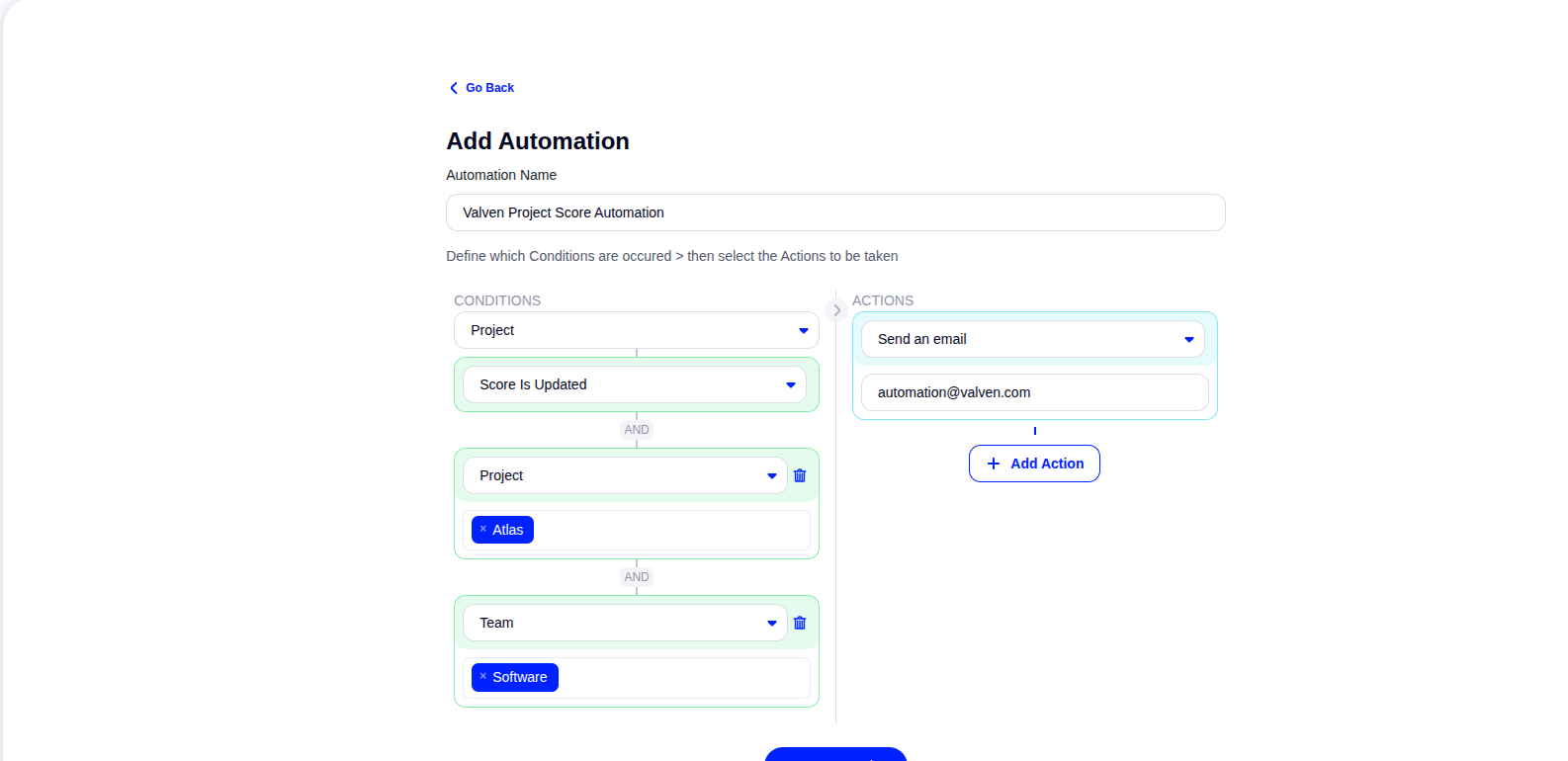
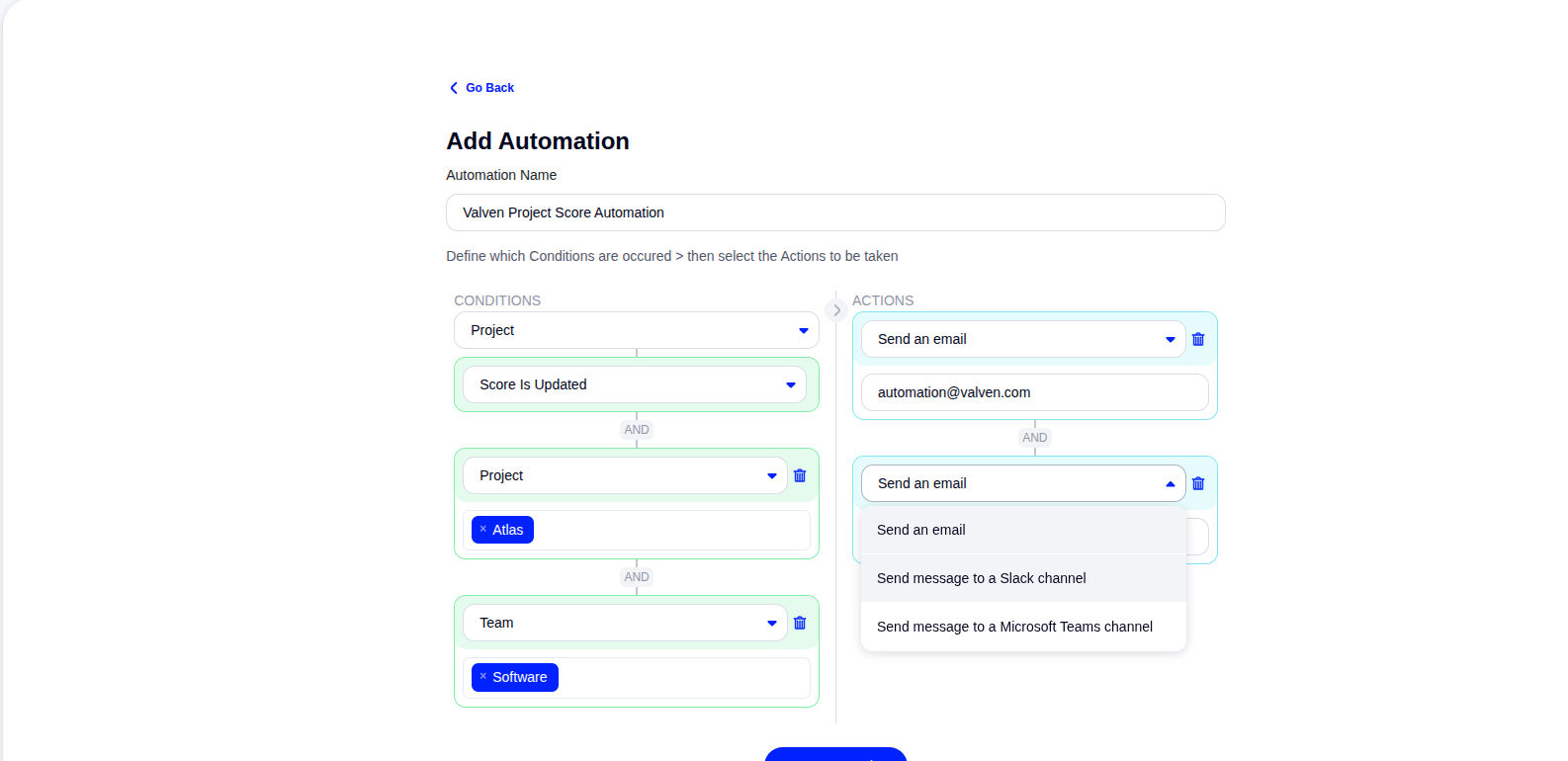
You can add more than one action to the same automation, for example both Email and Slack.
Step 6: Save the automation
When all conditions and actions are set, click Save Automation. Your automation is now created and active.
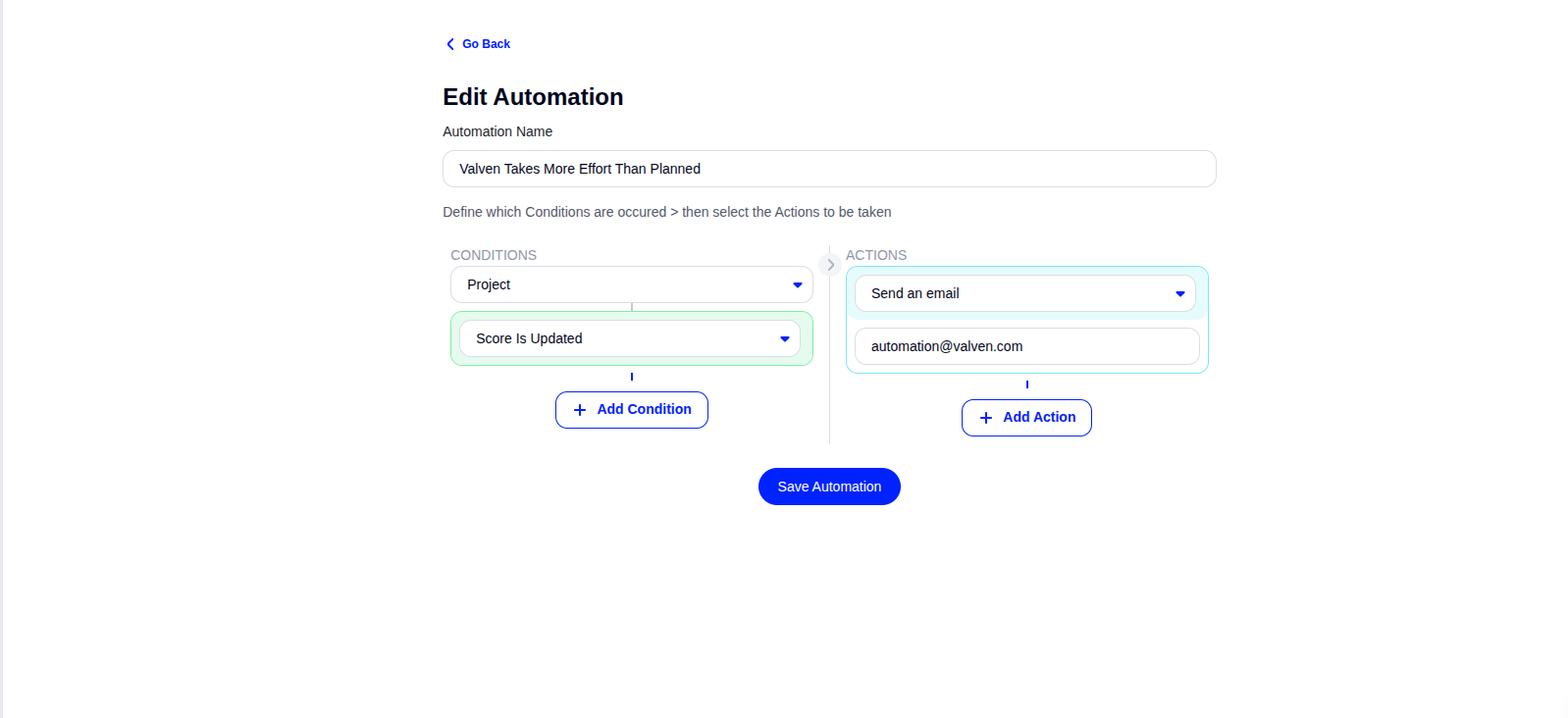
To change an automation's conditions later, open it from the Automations page and use the Edit screen.
Step 7: View and filter your automations
All automations you create are listed on the Automations page. For each automation, you can see how often it has been triggered, which projects or teams it is filtered by, and the category it was created in.
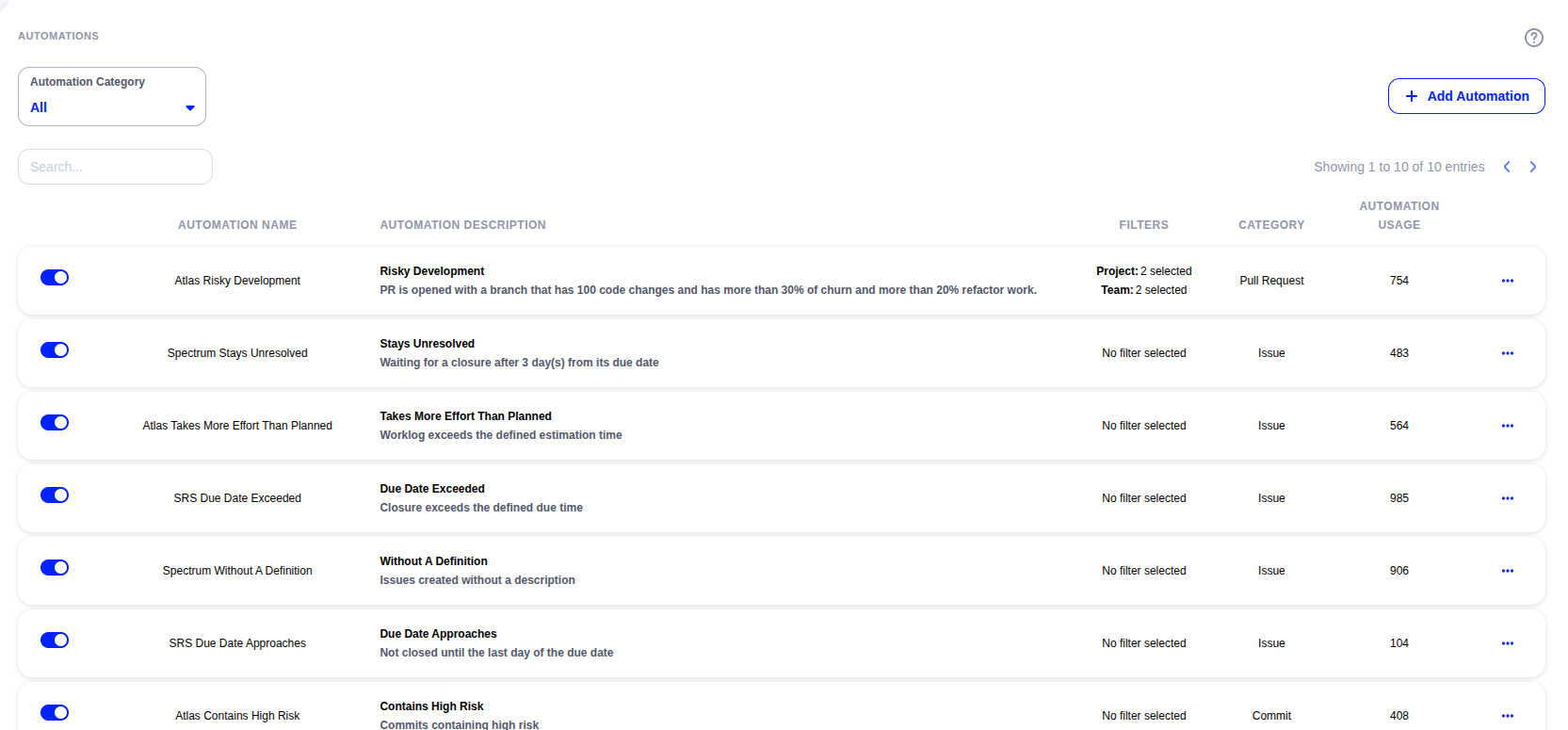
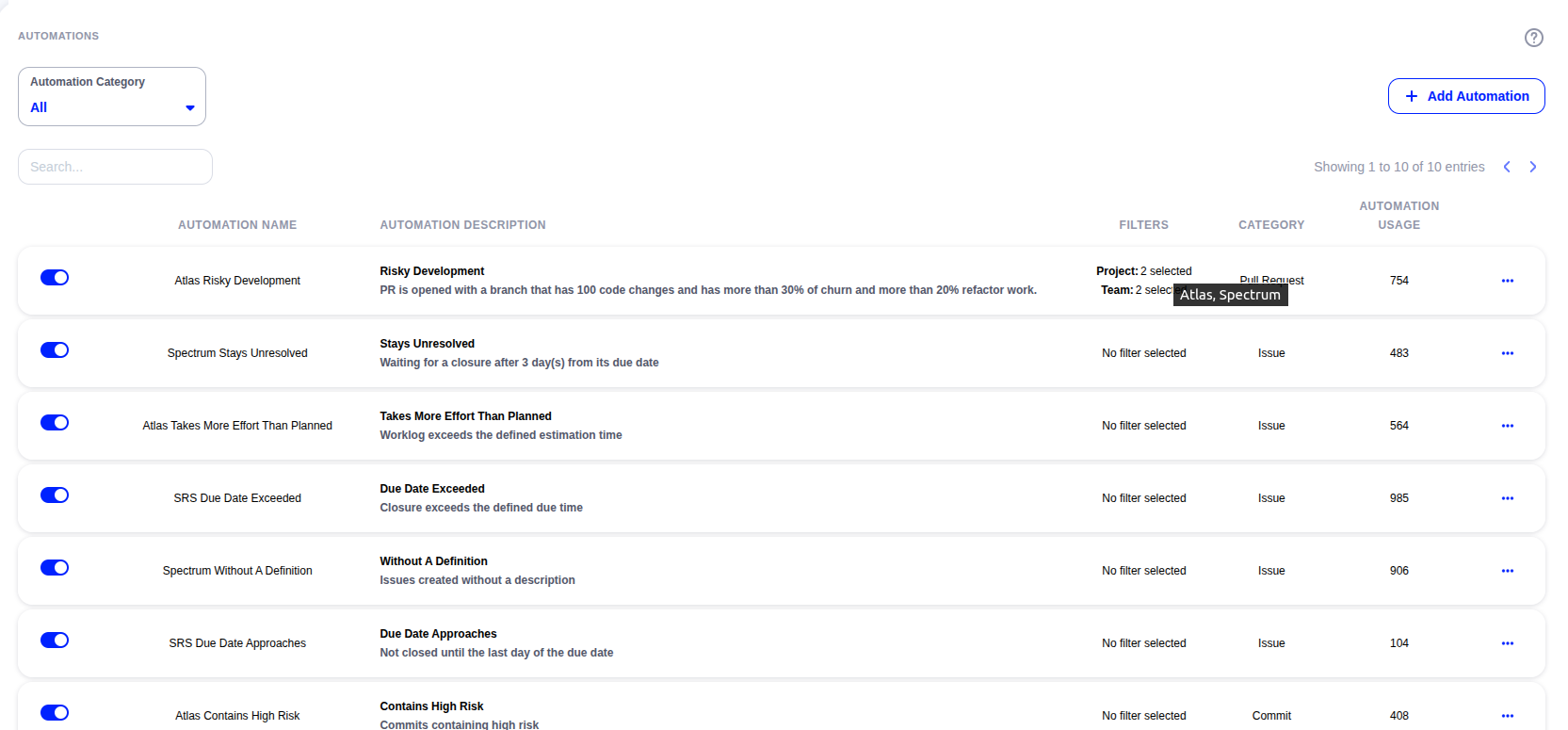
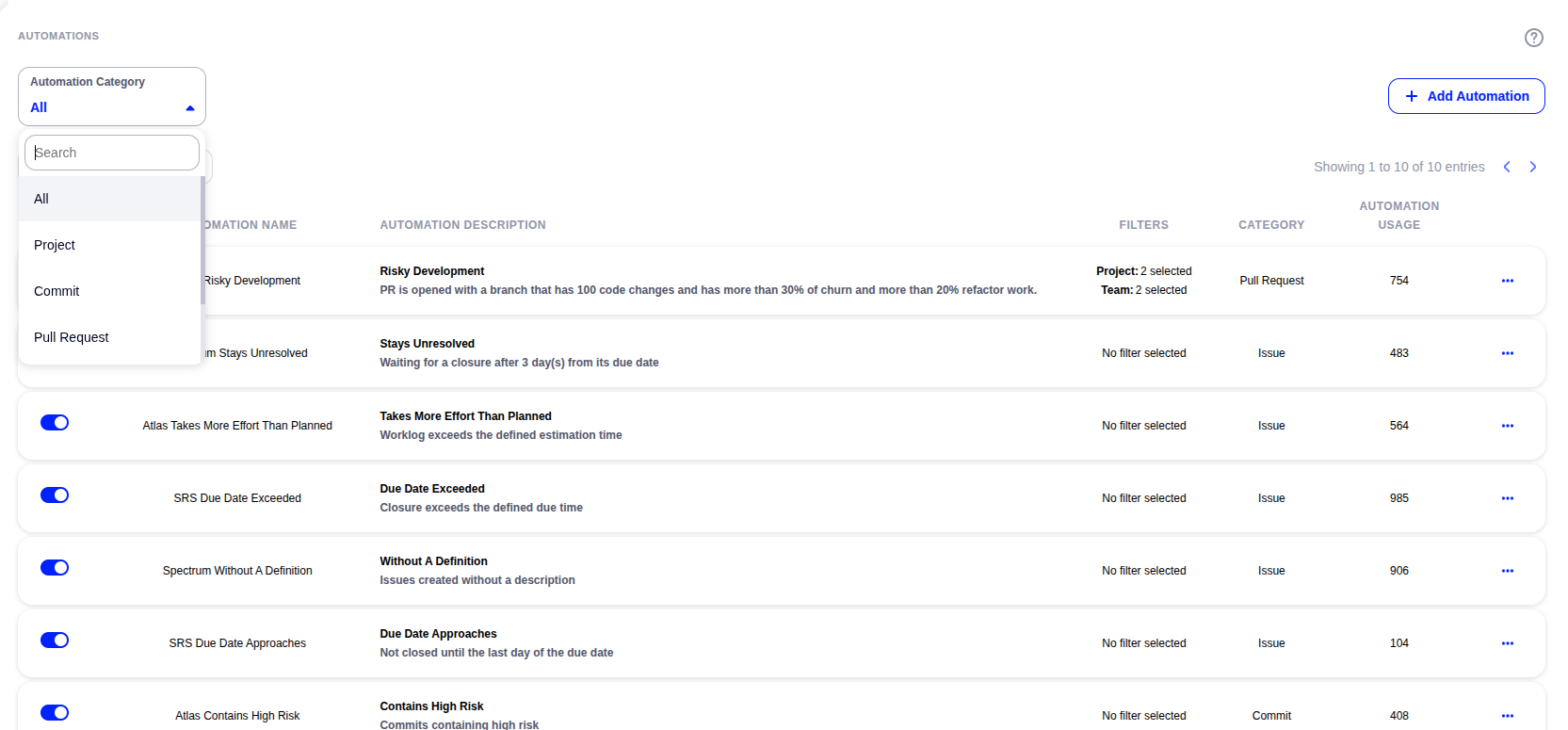
To narrow the list, use the Automation Category dropdown to filter automations by the category they were created in.
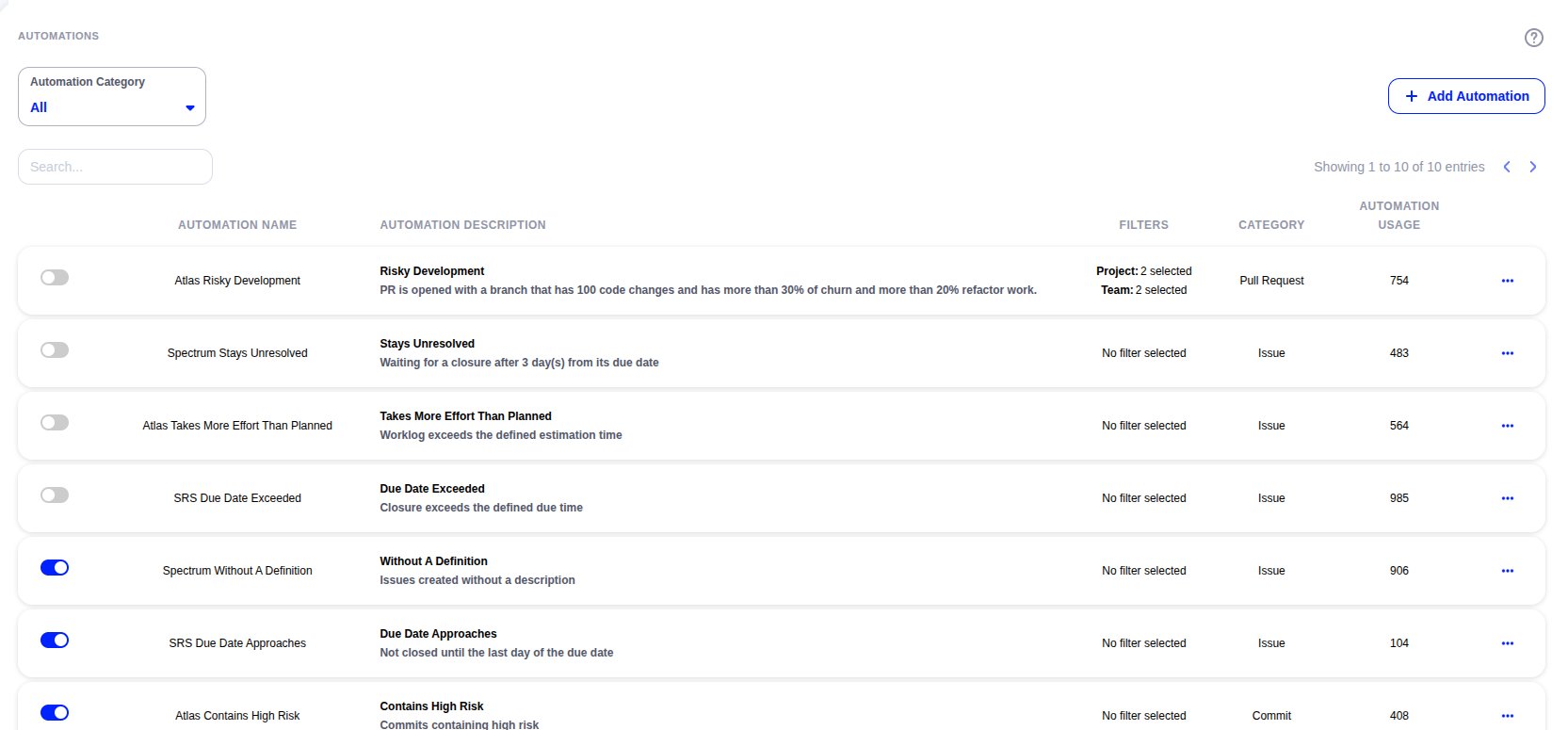
Step 8: Disable an automation
If you no longer need an automation, you can disable it instead of deleting it. A disabled automation stops sending notifications but keeps its settings, so you can re-enable it at any time without creating it again.
Comments
0 comments
Please sign in to leave a comment.